
Kenvara
Troubleshooting
What to check when customers see less than you expect, when a button will not do what you ask, when the licence reads not active, and what to do if something goes wrong.
Customers see no known issues
Work down this list. Each step must hold for a customer to see a known issue.
- The licence is active. The Kenvara page in Apps administration (Connected apps in Atlassian Administration, then Kenvara’s … menu, then Configure) shows “Kenvara licence: active”, or “active (evaluation)”. While it is not active, customers see nothing from Kenvara.
- The service project uses Kenvara. On the Kenvara page of Space settings, “Use Kenvara on this service project” is on.
- The portal is connected. The same page reads “Portal connection: verified”. No surface can be turned on until it is.
- The surface is on. The list on the portal’s home page, the create screen and the request panel are each turned on separately.
- The known error is published, not a candidate or retired, and its audience is not Internal.
- The customer is in its audience. For specific organisations, check that the customer is a member of one of them in Jira Service Management, and see the next section if they sign in with an Atlassian account.
- The surface has something to show. The create screen shows only known errors mapped to that request type on their Matching tab. The request panel shows only known errors linked to that request.
Then look as a customer would. An agent who opens the portal sees only known errors published to all customers.
Some customers never see Kenvara, whatever its settings:
- Customers who can see a request but not its request type do not see the request panel. That is an Atlassian limitation.
- Kenvara does not appear on Customer Service Management support sites.
- Known issues follow the service project, not the help centre.
One published known issue is missing from the portal
Each surface shows at most 25 known issues. Known issues not yet fixed come first, newest first, so on a busy service project an older one may not be shown. Retire the known errors customers no longer need, or publish to specific organisations rather than to all customers.
Atlassian-account customers see only the all-customers known issues
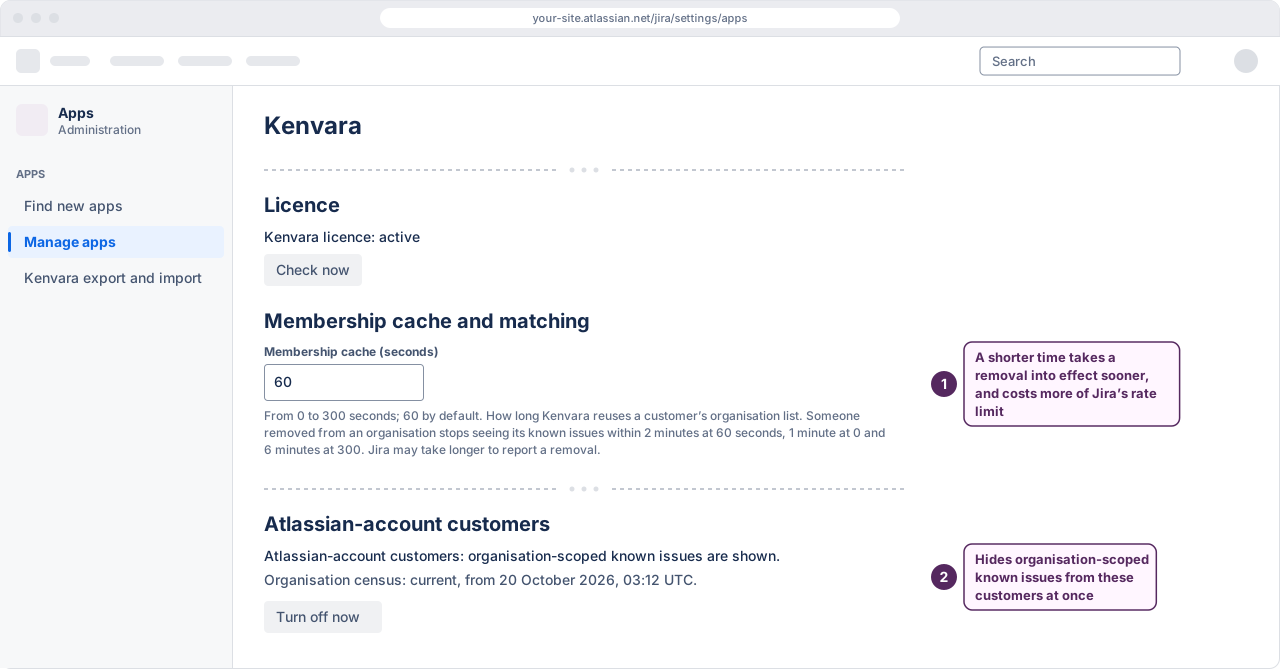
In this version that is expected until Kenvara’s daily check of the site’s organisations is current and covers three or more organisations, and for anyone who belongs to more than half of the site’s organisations, or to one created since the last check. The Kenvara page in Apps administration says, under “Atlassian-account customers”, whether these customers are shown organisation-scoped known issues, and if not, the reason. See Organisations and MSPs.
- “Organisation census: not used.” The site has fewer than three organisations, so these customers see only known issues for all customers.
- “Reason: not yet verified”. Kenvara has not yet checked its lookup of these customers’ organisations. It does so before it shows them organisation-scoped known issues.
- “Reason: Kenvara’s licence is not active”. Re-enable is not offered until the licence is active again.
If the reason says the safety check or the organisation census turned it off, tell Kenvara support before you select Re-enable: it may be a fault in Atlassian’s platform.
 (opens the full-size illustration)
A customer was removed from an organisation and can still see its known issues
When someone is removed from an organisation, they stop seeing its known issues within 2 minutes at Kenvara’s default setting. Jira may take longer to report a removal. A page already open keeps what it showed until it is reloaded, so wait a little longer and reload. If it persists, check that the person was removed from the organisation itself: removing an email domain does not remove anyone. A known error already published to an organisation stays visible to its members even if the organisation is detached from the service project; unpublish or re-publish it.
Customers sometimes see fewer known issues for a while
The Kenvara page in Apps administration says when one of these happened, and each recovers without action:
- Kenvara reached its hourly limit on Jira checks for the portal. Until the hour ends, customers it had not checked recently see only known issues published to all customers. Each customer has a share of the limit, so reaching it takes at least 100 customers in an hour. If it happens often, check whether open sign-up lets unknown people create customer accounts.
- Kenvara reached Forge’s limit on database time for the site. Portal pages may have shown no known issues around then. Many customers opening the portal at the same moment can cause it.
- Jira’s rate limit for apps on the site was low. Known issues for all customers stay on the portal. If Jira refuses Kenvara’s organisation checks, those for specific organisations are hidden until the limit resets. Kenvara also pauses suggestions in the Known errors panel for a while.
- A membership cache of 0 seconds makes every portal view ask Jira, and a customer who reloads very often can use up their hourly share. The page says what each setting costs.
The Known errors panel does not appear
The panel and “Create or link a known error…” appear only on the problem and incident work types a project administrator chose on the Kenvara page of Space settings, and only while Kenvara is on for that service project. On any other work item neither appears. If no work types are chosen yet, the workbench says so.
Someone removed as an agent can still see known errors
Kenvara may keep showing them that project’s known errors for up to 5 minutes. Every change they try is checked with Jira at once.
A request type is missing from the Matching tab
The Matching tab lists the request types Jira lists to you. If a request type is restricted to certain people and you are not one of them, you cannot map known errors to it. Ask an agent who can raise requests of that type to map it.
A review date is not the one you meant
A date typed in numbers, such as 01/11/2026, can be read month first, as 11 Jan 2026, with no warning, and a date typed in words is not taken at all. Pick the date from the calendar button instead, and check the review date in the result after you publish.
Pressing Enter does nothing
Pressing Enter in a field does not run a search or save a form. Select the button instead: Show results on the workbench, Find in “Create or link a known error…”, and Save site settings or Create report on the Kenvara page in Apps administration.
A button will not do what you ask
- “KE-12 cannot be published yet”. The publish dialog lists what is missing: a title, a summary, symptoms for customers, a workaround for customers (or the status None yet with a message for customers), a review-by date from today, or, for specific organisations, at least one organisation. Selecting Publish before then changes its name to say how many fields need attention.
- “Only project administrators … can publish”. Publishing, unpublishing, retiring and reopening are for project administrators and the publishing role chosen under “Who can publish”. Any agent can withdraw a candidate.
- “Four-eyes publishing is on”. The person who last changed the customer text cannot publish it, so the publish dialog offers no Publish button. Ask another publisher.
- “… was changed by someone else while you were editing.” Nothing was saved. Reload; your text is kept beside the record so you can copy it.
- “… is not one of …’s organisations now”. The organisation is no longer attached to the service project, or was deleted or changed. Remove it from the audience, or attach it in Jira and publish again.
- “Kenvara checks the first 1,000 organisations attached to …”. Publishing to specific organisations works on service projects with up to 1,000 organisations.
- “Kenvara could not finish checking these organisations …”. Nothing was published. Try again in a minute, and contact Kenvara support if it keeps happening.
- “Kenvara cannot use the work type …”. Jira gives that work type an id Kenvara cannot store. Remove it from the list on the Kenvara page of Space settings, then save again.
- “Kenvara could not finish this just now. Nothing was changed.” Try again in a minute.
- A refusal that names a field, such as a code block, a wide table, crossed-out text or a link that is not http or https: see “Writing text that customers read” in The workbench.
The licence reads not active
- “Kenvara licence: not checked yet”. Kenvara checks its licence once a service project uses it. Select Check now to check it sooner.
- “Kenvara licence: active on the last good answer”. Atlassian did not answer Kenvara’s latest check. Select Check now. If no check succeeds, Kenvara treats its licence as not active after the time the line gives, and customers then see nothing from Kenvara.
- “Kenvara has not checked its licence since …”. Select Check now. If this keeps happening, contact Kenvara support.
- After starting an evaluation or subscribing. Atlassian can take a few minutes to report it. On the Kenvara page in Apps administration, select Check now. If it still reads not active, try again in a few minutes. If it says Kenvara last checked a moment ago, wait until the time it gives.
- On the first save of a new service project. That save checks the licence. If it is refused, wait at least five minutes and save again.
- While it is not active, Kenvara is read-only, with export. Customers see nothing; known errors can be read, unpublished, retired, withdrawn and unlinked from a work item; changes that only switch something off or tighten a setting still save; and a Jira administrator can still export. See Backup and migration.
A portal connection warning
If the Kenvara page of Space settings warns that Kenvara saw requests from another service project on this portal, the service project may be connected to the wrong portal (the Kenvara page in Apps administration shows the same warning), and that portal’s customers may have seen its known issues. Check the portal address, confirm the connection again, and, if it was wrong, tell Kenvara support.
Keep the request panel on for a portal connected by hand: it is Kenvara’s only automatic check that the connection is right.
The daily checks have not run
The Kenvara page in Apps administration says when Kenvara’s daily checks last ran. They start once a service project uses Kenvara, and the first is due within a day of that. If they have not run for more than a day, review reminders, automatic retirements and repairs wait until they do. If it continues, contact Kenvara support.
If something goes wrong
This part is for Jira administrators.
If Kenvara support says a known error may have reached the wrong customers, create a publication history report on the Kenvara page in Apps administration, and keep it. It shows when each version was on the portal, who it was published to and which portal showed it, without known-error text or people’s names. Kenvara support cannot see your data, so it asks questions the report answers.
You need not send the report. If you choose to, send it only through Contact Kenvara support; Kenvara deletes it 90 days after the incident closes. Kenvara never asks for your export file.
To create the report, under “Publication history report”:
- Choose the Service project.
- Under Report on, choose “One known error” and type its Known error key, such as
KE-12, or choose “A period” and a Period: the last 7, 30 or 90 days, the last 12 months, or since Kenvara was installed. A period shows the publications made in it, so for one known error, report on that known error. - Select Create report. The table’s columns are Key, Record id, Revision, Audience, Organisations, Live from, Live until and Portal, and its caption says how many rows it holds. Organisations are named as they were when published.
A publication Kenvara has not yet confirmed reads “Pending: not yet confirmed” until its daily checks settle it, and is not counted as published. The Portal column says which portal showed each version, or why it was not served.
To stop a known error being shown at once, unpublish or retire it. To stop Atlassian-account customers seeing any organisation-scoped known issue, select Turn off now under “Atlassian-account customers”. If it answers “Kenvara could not finish this just now”, nothing was turned off: select it again. To take a whole service project off the portal, turn off its portal surfaces on the Kenvara page of Space settings.
Contact
Contact Kenvara support. For anything about what a customer could see, say so in the subject: it is read before anything else.