
Kenvara
Backup and migration
The export format, what it contains, when to take one, how to move to another site, and why an installation whose licence is not active needs one.
What the export contains
One file, in an open format (kenvara-export/v1), holding every known error, its revisions,
its links to work items, its audience and, with “Include audit history” selected, the audit
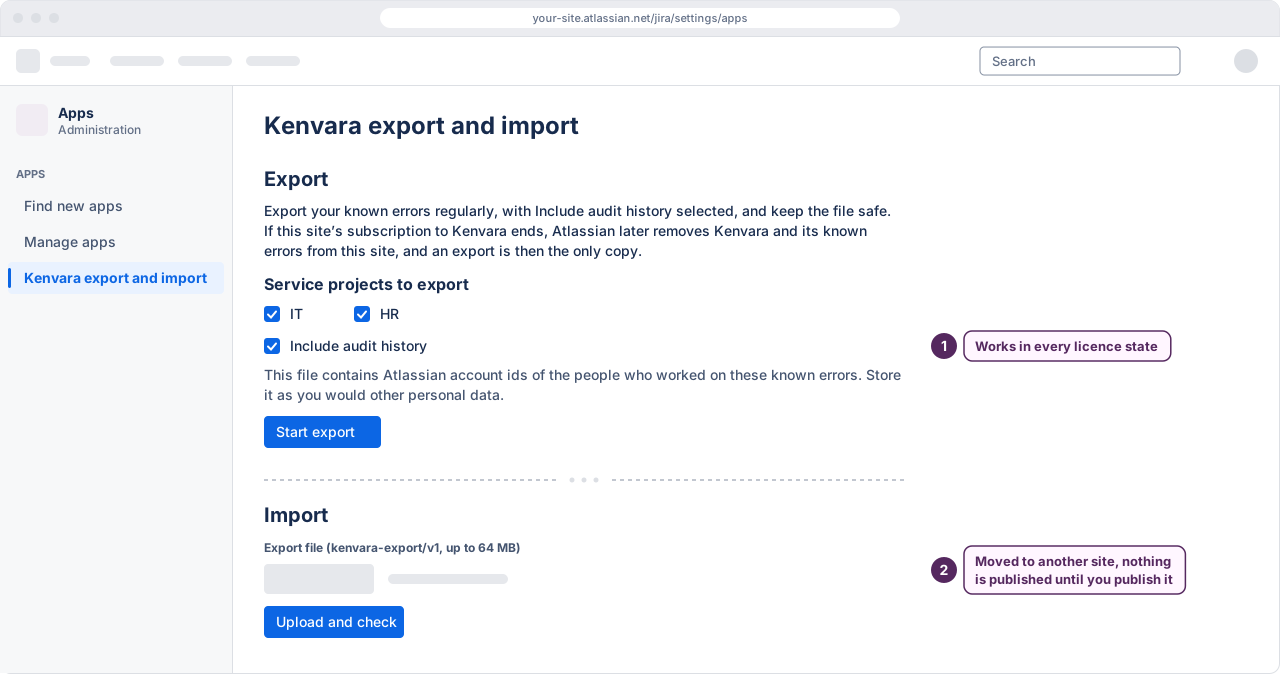
history. A Jira administrator takes it under Export on the “Kenvara export and import” page in
Apps administration: tick the service projects to export (all are ticked to begin with), keep
“Include audit history” ticked, and select “Start export”. The file holds the Atlassian account
ids of the people who worked on the known errors, so store it as you would other personal data.
 (opens the full-size illustration)
The export works in every licence state: while the licence is active, during the evaluation, and while it is not active.
When to take one
- Before you uninstall the app, or move to another site.
- When the evaluation is ending and the site has not subscribed.
- On a schedule you decide, the way you would for anything else you would not want to lose.
When the licence is not active
Kenvara is paid through Atlassian. While Atlassian keeps it running without an active licence — an evaluation that ended, a subscription that was cancelled or lapsed — Kenvara is read-only, with export:
- customers see nothing from Kenvara on the portal;
- agents can read known errors, and can unpublish, retire, withdraw and unlink them, but nothing can be created, edited, linked, published or imported;
- changes that only switch something off or tighten a setting can still be saved;
- the export still works.
A suspended or deactivated licence may stop the app altogether. That is Atlassian’s behaviour, not the app’s.
Why it matters: a lapsed installation loses its data
A paid app whose licence lapses is later removed by Atlassian, with its data. No setting inside the app prevents it. So the Kenvara page in Apps administration always recommends keeping a recent export, and reminds administrators to export while the licence is not active and in an evaluation’s last 7 days. If the subscription has ended, the export is then the only copy.
Moving to another site
- Export, with audit history, from the site you are leaving, and keep the file.
- Install Kenvara on the new site and start its evaluation or subscribe.
- Import the file under Import on the “Kenvara export and import” page in Apps administration: choose the file, up to 64 MB, and select “Upload and check”. Import is offered only while the licence is active; if the page says otherwise, select “Check now” on the Kenvara page in Apps administration and, once the licence reads active, reload. The report says what the import will do; confirm it within 24 hours. The check waits on the site, not in your browser: if you leave or reload the page, it offers the same report again when you come back within the 24 hours. “Cancel import” ends the check. An import that is not a restore on the same site arrives unpublished, on purpose: nothing you import appears on a portal until you publish it again.
- Switch each service project on, one at a time. A service project the import sets up arrives with Kenvara off, its portal not confirmed and every portal surface off: on the Kenvara page of Space settings, confirm the portal, turn the portal surfaces on and save. Check its portal as a customer would before moving to the next.
Publication is the one thing to redo. Records, revisions, links and audit history come across in the export, but nothing is published until you publish it, so plan the publishing pass as part of the move. Audiences limited to specific organisations do not come across to another site: those known errors arrive with the audience Internal, and a publisher chooses the organisations again.
Restoring
Importing the file onto the same site, when every service project in it is still there, is a restore. The report then asks what to do with published records: “Keep them published as listed” or “Import every record as a candidate”. A known error the site already holds is not changed by the import: it keeps the version here. A published known error whose audience names an organisation no longer on the site arrives as a candidate.
Anything else, another site or a service project that does not match, is a site migration, and arrives unpublished.
Before you uninstall
The Export section of the “Kenvara export and import” page says this, word for word: “Uninstalling Kenvara offers a choice. If you keep access, Atlassian keeps Kenvara running until the subscription or evaluation ends, plus 60 days. If you remove it immediately, it goes at once and any time left is given up. Either way, Atlassian then deletes its known errors under its own retention rules, up to about 30 days after it goes: its storage documentation gives 28 days, and its data-lifecycle page refers to the retention period in Atlassian’s SOC 2 report. So export first. Kenvara tries to turn itself off for every service project when it is uninstalled, but Atlassian does not guarantee when or whether that step runs, so do not rely on it.”
So before you uninstall, export with “Include audit history” selected, then, on the Kenvara page of Space settings, turn off each service project’s portal surfaces and “Use Kenvara on this service project”, save, and check that the portal shows no known issues.