
Kenvara
The workbench
Find, read and edit known errors on the Known errors page of a service project's queues, and see what each status, audience and notice means.
Where it is
The workbench is the Known errors page in a service project’s queues. It is there for the project’s agents once a project administrator has turned on “Use Kenvara on this service project” and chosen the work types (see Getting started). An agent on a service project without Kenvara reads that Kenvara is not set up, and that a project administrator can set it up on the Kenvara page of Space settings.
Every known error belongs to one service project, and the workbench shows only that project’s known errors.
The list
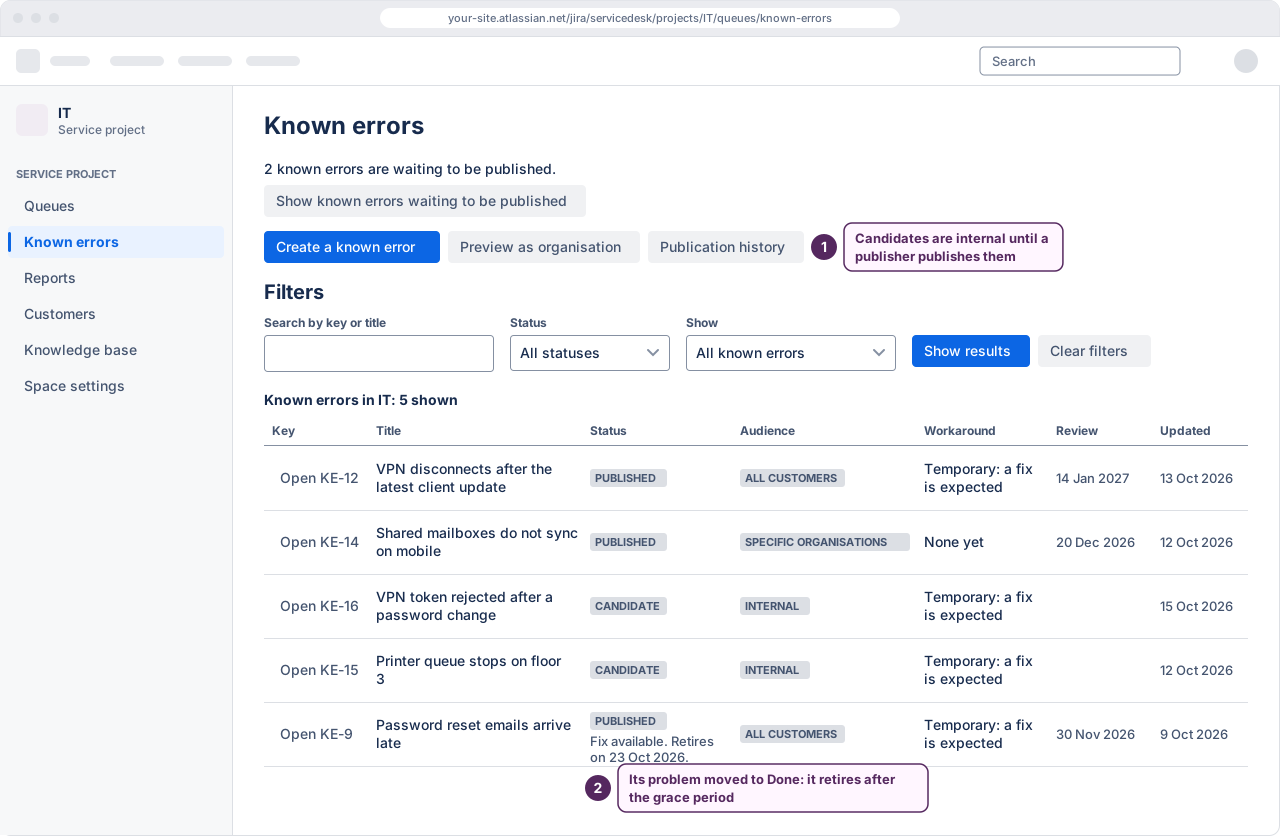
The list opens with three buttons: Create a known error, Preview as organisation and Publication history. Then come the filters, then a table of known errors. Its caption says how many are shown, for example “Known errors in IT: 12 shown”.
The filters are:
- Search by key or title. Type part of a title, or a key such as
KE-12. - Status: All statuses, Candidate, Published or Retired.
- Show: All known errors, Waiting to be published, Unpublished changes, Review due, Fix available, Source deleted, or Hidden from the portal.
Nothing changes as you choose, and pressing Enter in the search field does nothing. Select Show results and the button then reads the result, such as “Show results: 3 shown” or “Show results: none match”. Clear filters puts every filter back and runs the search again.
The table’s columns are Key, Title, Status, Audience, Workaround, Review and Updated. The Key column holds each row’s “Open KE-12” button, which opens that known error. The list shows 50 known errors at a time: while more exist, Show more known errors after the table adds the next 50.
 (opens the full-size illustration)
When candidates are waiting, a line above the list says how many, for example “2 known errors are waiting to be published.”, with the button Show known errors waiting to be published. Every agent sees it.
In the last 7 days of an evaluation, publishers also see when the evaluation ends.
The three statuses
- Candidate. Being written. A candidate is never on the portal, whatever its audience or the portal settings say.
- Published. On the portal for its audience, on every portal surface the project has turned on.
- Retired. No longer current. Customers stop seeing it from their next page load, and its history is kept.
The three audiences
- Internal. Agents only. It never appears on the portal.
- All customers. Everyone who can use this service project’s portal.
- Specific organisations. Only members of the customer organisations it names. See Publishing and audiences and Organisations and MSPs.
Creating a known error here
Select Create a known error, fill in the form and select Create known error. The new record starts as a candidate, and the record view opens. Most known errors are better started from the problem or incident they describe, so that they are linked to it from the start: see Promoting a known error.
The record view
“Open KE-12” replaces the list with the record. Back to Known errors returns to the list. The link in a review reminder opens its record directly.
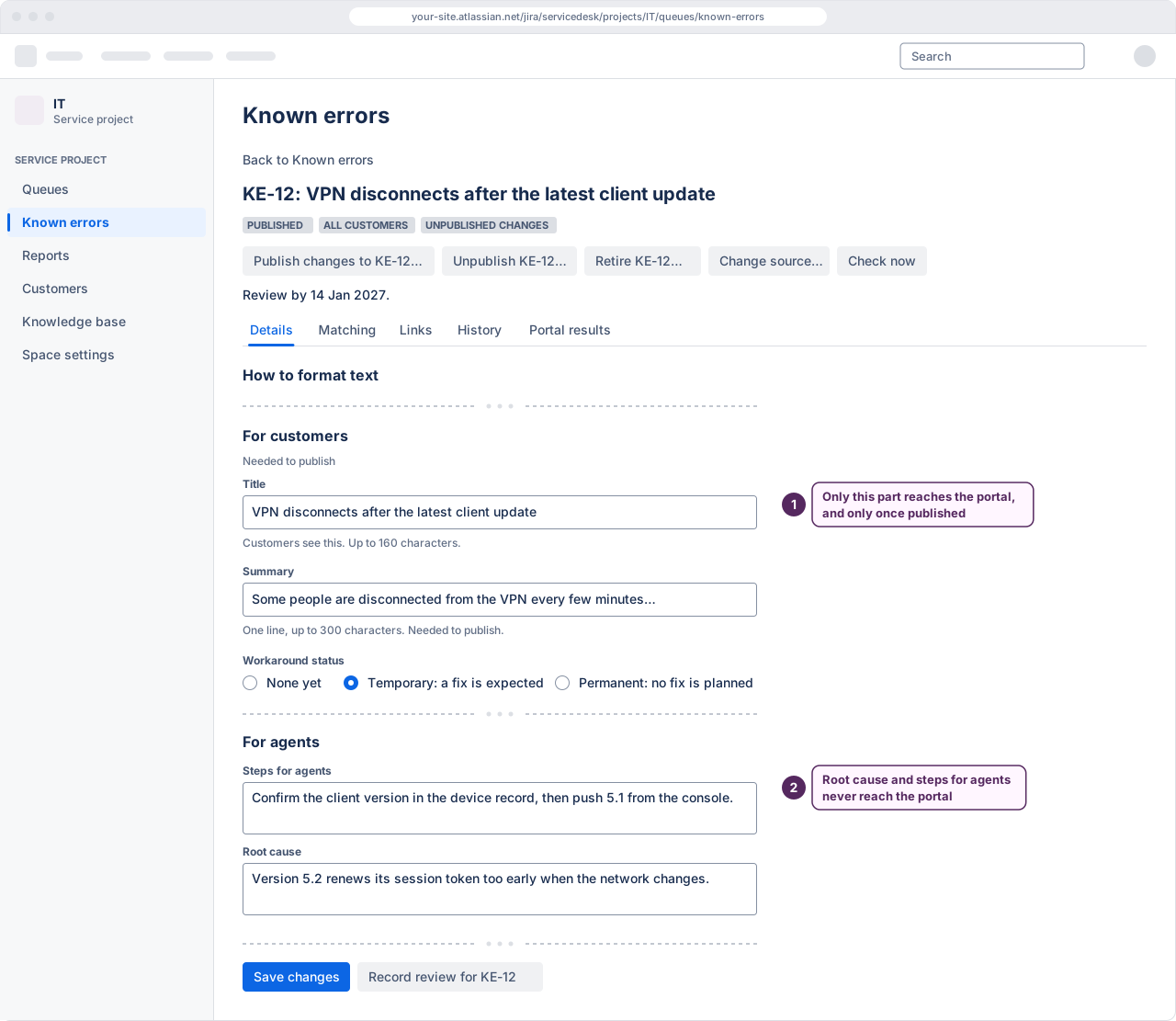
The header shows the key and title, the status, the audience and, when the published text and the working text differ, Unpublished changes. Below it are the actions you may take, each naming the record: “Publish KE-12…” (or “Publish changes to KE-12…” when it is already published), “Unpublish KE-12…”, “Retire KE-12…”, “Withdraw KE-12…” or “Reopen KE-12…”. Which ones appear depends on the status and on whether you can publish. If you cannot publish, the header says who can. Retiring asks for a reason: “No longer needed” or “Replaced by another known error”.
Two more actions may follow:
- Change source… lets a publisher point a known error that is not retired at another problem or incident in the same service project, typed by its key. The old source stays linked as an affected work item.
- Check now, on a known error written from a problem, checks at once whether the problem is Done and, if it is, records that a fix is available. See Reviews and retirement.
The record has five tabs.
- Details holds the text, in two parts. For customers: Title, Summary, Symptoms, Workaround status, Workaround for customers and Message for customers. For agents: Steps for agents and Root cause. Review by is the date the record is next due for review. Fields marked “Needed to publish” must be filled before the record can be published.
- Matching chooses the request types and services whose create screen shows the known error, and holds its keywords. See Matching.
- Links lists the work items linked to the known error, with each one’s role: Source for the problem or incident it was written from, Affected for the others.
- History lists what has happened to the known error, and who did it, and lets you compare two published revisions.
- Portal results shows how often customers were shown the known issue, opened it and answered its feedback buttons, over 7, 30 or 90 days.
 (opens the full-size illustration)
Below the Details tab’s fields, Record review for KE-12 records that the known error has been reviewed, and sets the next review date to the review interval from today. When a fix is available, a publisher also sees Hold retirement, which keeps the known error published until Release hold is selected. See Reviews and retirement.
Select Save changes to save the Details or Matching tab. Saving a published known error does not change what customers see: the record shows Unpublished changes until a publisher publishes the changes.
If someone else saved the record while you were editing, nothing is saved. Your text stays in the form so that you can copy it; reload the record to see their changes.
Writing text that customers read
Each text field takes plain text, with a small set of formatting written into it. The form’s
“How to format text” section lists it: a blank line between paragraphs; #, ## or ### at
the start of a line for a heading; - for a bulleted list item; 1. for a numbered list item;
**bold**; _italic_; backticks for code; and [link text](https://…) for a link, with http
or https only.
Some formatting is refused, because customers’ screens and screen readers cannot show it reliably. As soon as you save:
- a code block in a field customers read: use plain text or a list;
- a link that does not start with
https://orhttp://.
When you publish:
- a table wider than customers’ screens show without scrolling, or a table without a header row;
- crossed-out text: write “No longer needed:” before a step instead.
Images, attachments and mentions are never published. If a field held an image, Kenvara replaces it with a note asking you to describe in words what the image showed, and publishing waits until you have.
Write for the customer. Symptoms are what customers notice, in their words; the workaround is steps a customer can take. Root cause and steps for agents never reach the portal.
Preview as organisation
Preview as organisation shows what the members of one organisation see on this service project’s portal list, by the rules the portal uses. Choose the organisation; the preview lists their known issues and records nothing. Its rows do not open: the details are the portal’s to show. See Organisations and MSPs for what it does and does not cover.
While the licence is not active
Kenvara is read-only, with export, while its licence on the site is not active. The workbench says so above the list. You can still read every known error, unlink one from a work item, withdraw a candidate and, if you can publish, unpublish or retire one. Create a known error is not offered, the Details and Matching tabs show their text without a form, and a published record reads “Hidden from the portal: Kenvara’s licence is not active.” Customers see nothing from Kenvara until the licence is active again.
Publication history
Publication history, above the filters, lists every publication in this service project: the key, title and revision, who published it, its audience and organisations, and when it was live on the portal. Back to Known errors returns to the list. The same history for the whole site is on the Kenvara page in Apps administration (see Troubleshooting).