
Kenvara
Promoting a known error
Turn an analysed problem, or an incident, into a known error from the work item itself, link other work items to it, and apply its workaround on an incident.
Before you start
Kenvara works on the work types a project administrator chose on the Kenvara page of Space settings: “Problem work types” and “Incident work types”. On any other work item, neither the Known errors panel nor “Create or link a known error…” appears.
To promote, you need to be an agent on the service project. Creating a known error makes a candidate, which customers never see. Publishing is a separate step, described in Publishing and audiences.
A problem work type
A known error is usually written from a problem that has been analysed but not yet resolved.
On the site Kenvara was tested on, a service project created from Jira Service Management’s IT
service management template in October 2026 came with the [System] Problem work type, whose
create screen carries Root cause and Workaround fields. Choose it under “Problem work types”.
If your service project has no problem work type, you have two choices:
- Start from incidents. Under “Problem work types” choose “None: start from incidents”, and choose your incident work types. Known errors can then be written from incidents.
- Add one. A Jira administrator adds a work type for problems to the project’s work type scheme in Jira. It then appears in “Problem work types”. Kenvara never creates work types.
Optional field mapping. Under “Optional: map Root cause and Workaround fields”, a project administrator can name the problem’s own Root cause and Workaround fields. When a known error is created for a problem, Kenvara copies them into its agent fields, “Root cause” and “Steps for agents”, so the analysis is not typed twice. Fields for customers always start empty.
Optional link type. Under “Optional: choose the link type for raising problems”, the link type for “is caused by” lets Kenvara link an incident to a problem it raises.
The Known errors panel
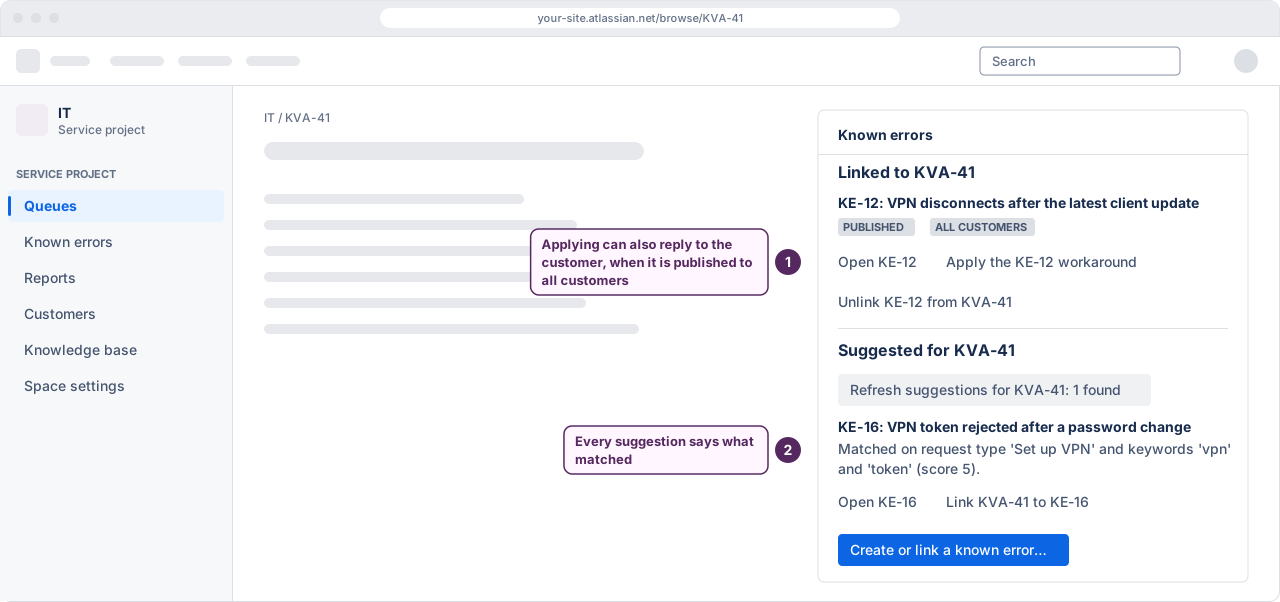
On a problem or incident of a chosen work type, the Known errors panel shows:
- for a problem, its own known error, if it has one, with its status;
- under “Linked to KVA-1”, each known error linked to this work item, with its status and audience, and the actions you can take on it: “Open KE-12”, which opens the Known errors page, “Apply the KE-12 workaround” on an incident, “Unlink KE-12 from KVA-1” and, when a review is due, “Record review for KE-12”;
- under “Suggested for KVA-1”, the known errors Kenvara suggests for this work item, once you select “Show suggestions for KVA-1” (see Matching);
- the button Create or link a known error….
 (opens the full-size illustration)
The same dialog opens from the work item’s actions menu, under “Create or link a known error…”.
Create or link a known error
The dialog works out what makes sense for the work item you opened it from, and offers that.
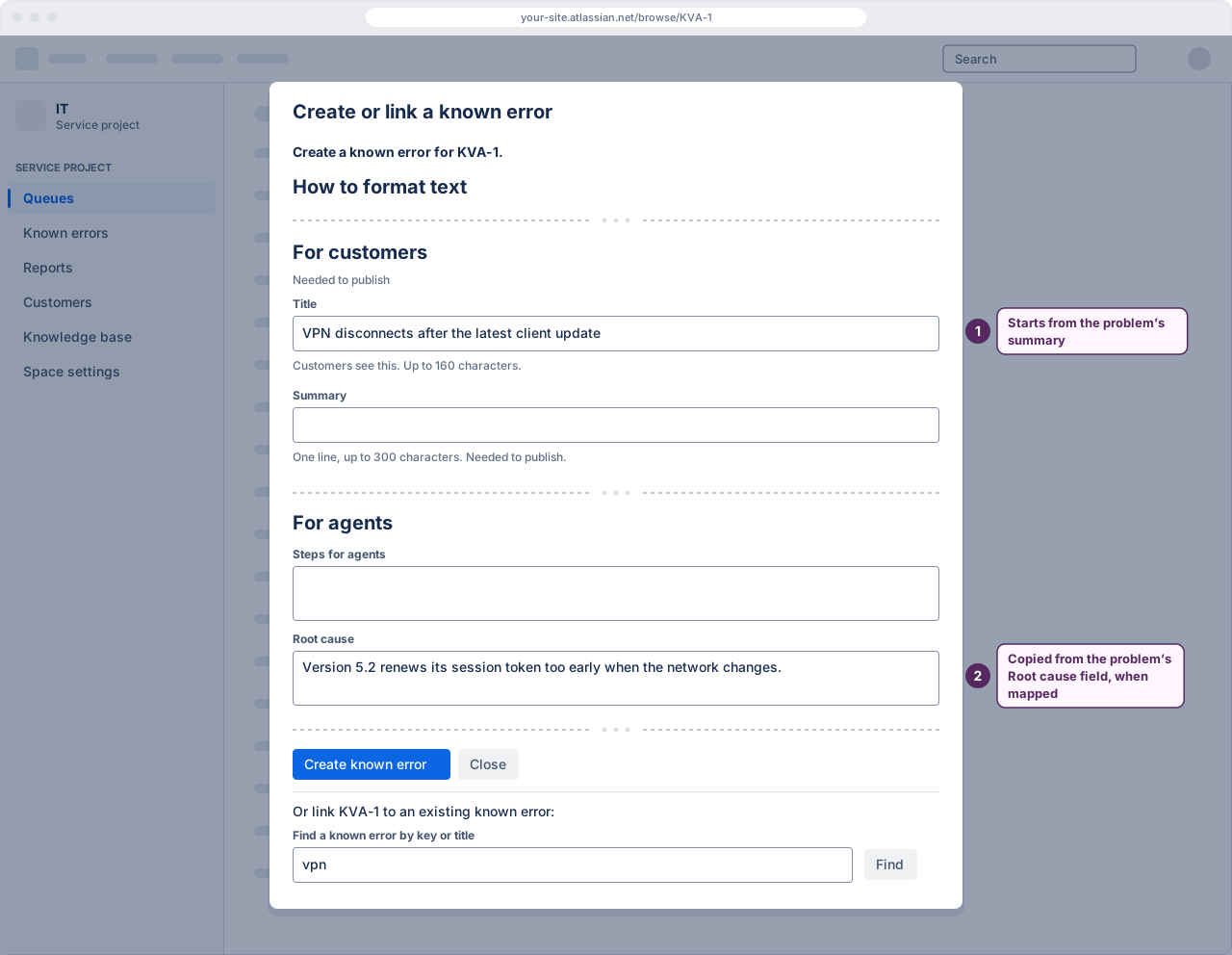
- A problem with no known error. It offers to create one for the problem. The form opens with the problem’s summary as the title and the mapped fields in the agent fields. If the title was shortened to 160 characters, or Kenvara removed images or mentions from the copied text, the form says so above the fields: check that text before you create.
- A problem that already has one. It names the existing known error and its status, for example “KVA-1 already has a known error: KE-12 (candidate).”, with a button to open it. A problem has one known error at a time; to start again, withdraw the candidate or retire the published one first.
- An incident linked to a problem that has a known error. It offers to link the incident to that known error. When that known error is published with a workaround, it also offers Link and apply the workaround, which links the incident and opens the workaround in the same dialog.
- An incident linked to a problem without one. It offers to create a known error for the problem, and links the incident to it. The form is prefilled from the problem, as above.
- An incident with no problem. It offers to create a known error from the incident itself. The title starts empty, because a customer wrote the incident’s summary. If the incident has the mapped fields, they fill the agent fields. You can also tick “Also raise a problem and link it”, which raises a problem and links the incident to it as “is caused by”. If no link type is set up, the problem is raised but not linked. If no problem work type is chosen, Kenvara cannot raise one, and says so.
When creating from an incident, a button inserts the incident’s summary into Symptoms, if Symptoms is still empty. Its label says to check that text first: a customer wrote it, and it may contain personal details.
Fill in the form, the same fields as on the workbench, and select Create known error. The result says the known error was created as a candidate, and that customers cannot see it until it is published. If you cannot publish, it names who can. The button after the result, “Open KE-12 in Known errors”, opens the Known errors page.
 (opens the full-size illustration)
Link to an existing known error
Below the dialog’s own choice is “Or link KVA-1 to an existing known error:”. Type a key such as
KE-12, or words from a title, under “Find a known error by key or title”, and select Find
(pressing Enter in the field does nothing). The button then reads how many were found. Each result has its own button, “Link KVA-1 to
KE-12”.
Linking does not change the known error. A link made on a request is also how the portal’s request panel decides what to show on that request: see The portal.
A known error and its problem must be in the same service project in this version.
Unlink
On the panel, “Unlink KE-12 from KVA-1” removes the link. A known error’s own source cannot be unlinked from the panel; its line says so. A publisher can change the source with Change source… on the known error in Known errors (see The workbench).
Unlinking works whatever the licence state.
Apply a workaround to an incident
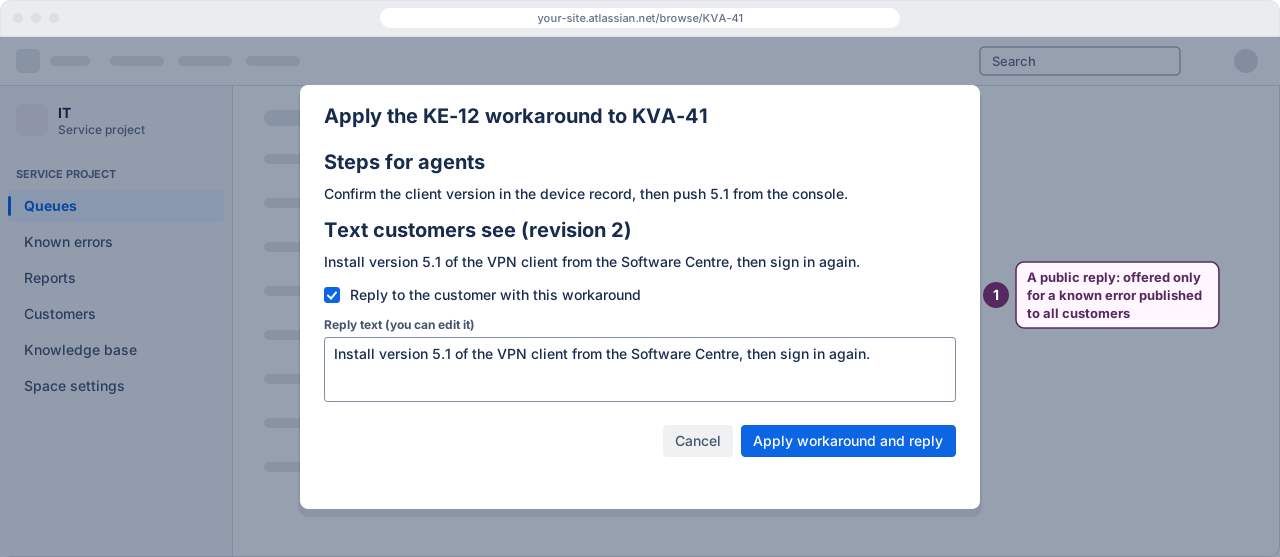
On an incident, every linked known error that is not retired has the button “Apply the KE-12 workaround”. The dialog shows the steps for agents and the text customers see, or says that the known error has no workaround yet. Select Apply workaround to record that the workaround was applied to the incident.
Tick Reply to the customer with this workaround to send the customer text as a reply on the request; you can edit the reply first, and the button then reads Apply workaround and reply. It is offered only for a known error published to all customers. It is not offered:
- for a known error limited to specific organisations, because a reply is visible to everyone on the request, and Kenvara cannot confirm they are all in the known error’s organisations;
- for an internal known error, or a candidate, which is not for customers;
- when there is no workaround for customers.
 (opens the full-size illustration)
After applying, the dialog asks whether the workaround worked: “KE-12 worked”, “KE-12 partly worked” or “KE-12 did not work”. The answer is recorded against the known error.
Next
Publishing and audiences covers who may publish, the three audiences, and what customers then see.