
Kenvara
Matching
How Kenvara suggests known errors on a work item, how a known issue reaches a request type's create screen, and what to put on a known error's Matching tab.
Two things matching does
- For agents, it suggests known errors on a problem or incident, in the Known errors panel.
- For customers, it decides which known issues appear on the create screen of each request type on the portal.
Matching is a simple, fixed rule, the same every time, and every suggestion says why it was made. It never decides who may see a known error: it only suggests ones the agent could open anyway, and the portal applies its own audience rules before anything is shown.
The Matching tab
Each known error’s Matching tab, on the workbench, holds:
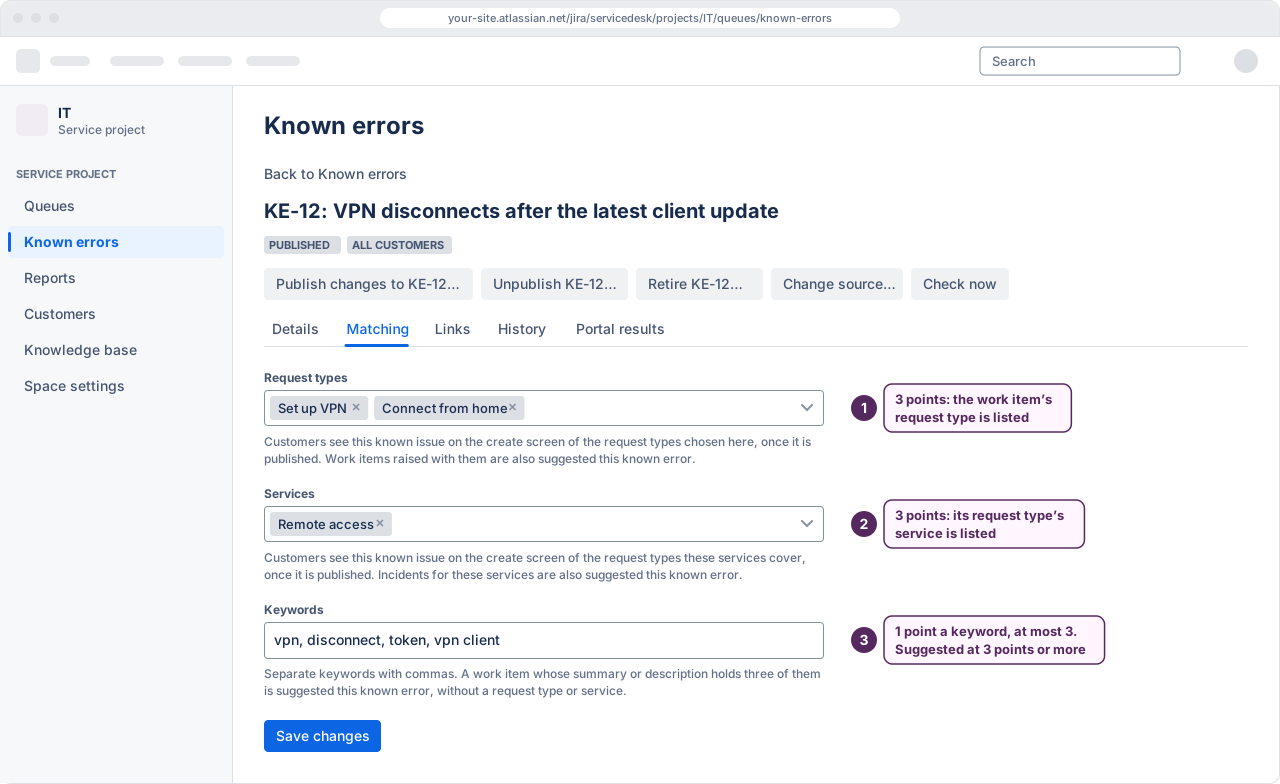
- Request types. The request types of this service project whose create screen shows the known issue, once it is published. Work items raised with them are also suggested this known error.
- Services. The services this known error belongs to. A project administrator names the services, and chooses the request types each one covers, under “Optional: name the services customers recognise” on the Kenvara page of Space settings. A request type belongs to one service at most. Choosing a service works like choosing every request type it covers: work items raised with them are suggested this known error and, once it is published, their create screen shows it. If no services are named, the field says so.
- Keywords. Words separated by commas. A work item whose summary or description holds three of them is suggested this known error, without a request type or service.
Select Save changes to keep them. A saved Matching tab takes effect at once, without publishing again: agents’ suggestions follow it, and so, for a published known error, does the create screen. The Matching tab is not part of what customers read, so changing it does not mark the record “Unpublished changes”.
 (opens the full-size illustration)
A request type or service that no longer exists, or that Kenvara cannot read, is listed by its id followed by “(not available now)” and keeps its place until you remove it.
How a suggestion is scored
For a work item, Kenvara looks at its request type, at the service that request type belongs to, and at the words of its summary and description:
- the request type is one the known error lists: 3 points;
- the request type’s service is one the known error lists: 3 points;
- each of the known error’s keywords found in the work item: 1 point, counting at most 3.
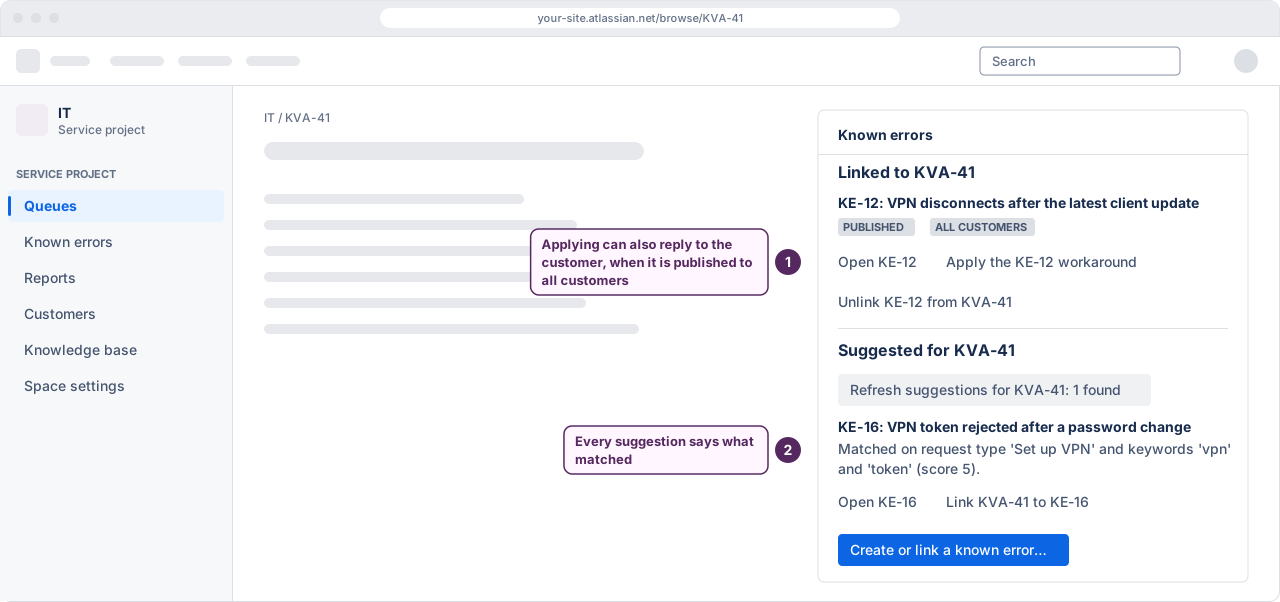
A known error with 3 points or more is suggested. Higher scores come first, then published known errors before candidates, then the most recently published. Each suggestion says what matched, for example “Matched on request type ‘Set up VPN’ and keywords ‘vpn’ and ‘token’ (score 5).” A service that matched is named the same way, for example “service ‘Remote access’”.
So a known error is suggested for every work item of a request type it lists or its services cover, and for any other work item only when three of its keywords appear.
Choosing keywords
- Use the words customers and agents actually type: the product name, the error text, the symptom.
- A keyword is one word or a two-word phrase, such as “vpn timeout”, of up to 40 characters; a known error holds up to 20. Separate keywords with commas.
- In this version a keyword is kept exactly as you type it, while the work item’s text it is compared with is put in lower case, stripped of accents and split at punctuation, and its words shorter than 3 letters or digits are left out. So type each keyword in lower case, without accents or punctuation, as one or two words of at least 3 letters or digits each; a keyword typed any other way may never match.
- Common words are ignored. A Jira administrator can add more words to ignore, such as your own company’s name, under “Extra words to ignore when matching” on the Kenvara page in Apps administration.
Suggestions in the Known errors panel
By default suggestions load only when asked: select “Show suggestions for KVA-1” in the panel. The button then reads the result, for example “Refresh suggestions for KVA-1: 2 found”. Each suggestion has an “Open KE-12” button and a “Link KVA-1 to KE-12” button.
 (opens the full-size illustration)
A project administrator can make suggestions load with the panel, under “Show suggestions automatically in the Known errors panel” on the Kenvara page of Space settings. That uses more of Jira’s rate limit for apps on the site. When the limit is low, suggestions pause and the panel says so; linked known errors and every action still work.
The create screen on the portal
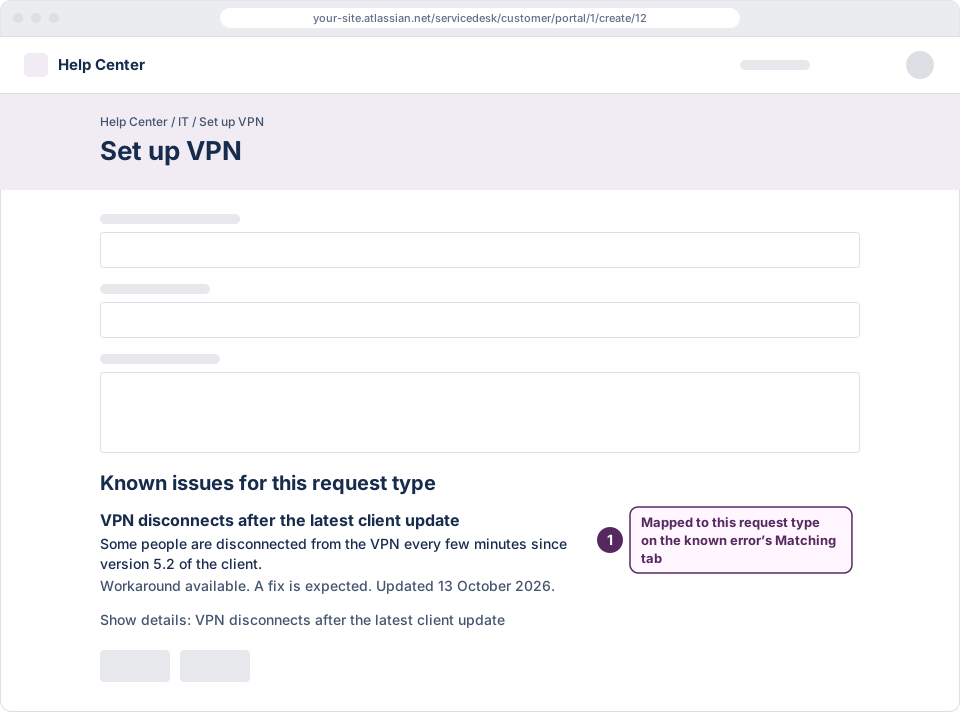
When a customer picks a request type on the portal, the create screen shows “Known issues for this request type”: the published known errors that list that request type, or the service it belongs to, on their Matching tab, and that the customer may see. A known error with neither never appears there.
The create screen matches by request type and service only. It does not read what the customer types.
 (opens the full-size illustration)
For the create screen to show anything, the service project’s “Known issues on the create screen, for request types you map” surface must be on. See Getting started.