
Kenvara
The portal
What customers see on the portal, where they see it, what each kind of visitor is shown, and what the feedback buttons do.
Known issues, not known errors
Customers read known issues. Agents and administrators read known errors. It is the same record: the portal shows only the parts written for customers, and never the root cause, the steps for agents, the record’s key or anything about who else can see it.
The three places
Each service project turns these on separately, on the Kenvara page of Space settings. Nothing shows until a known error is published and its surface is on.
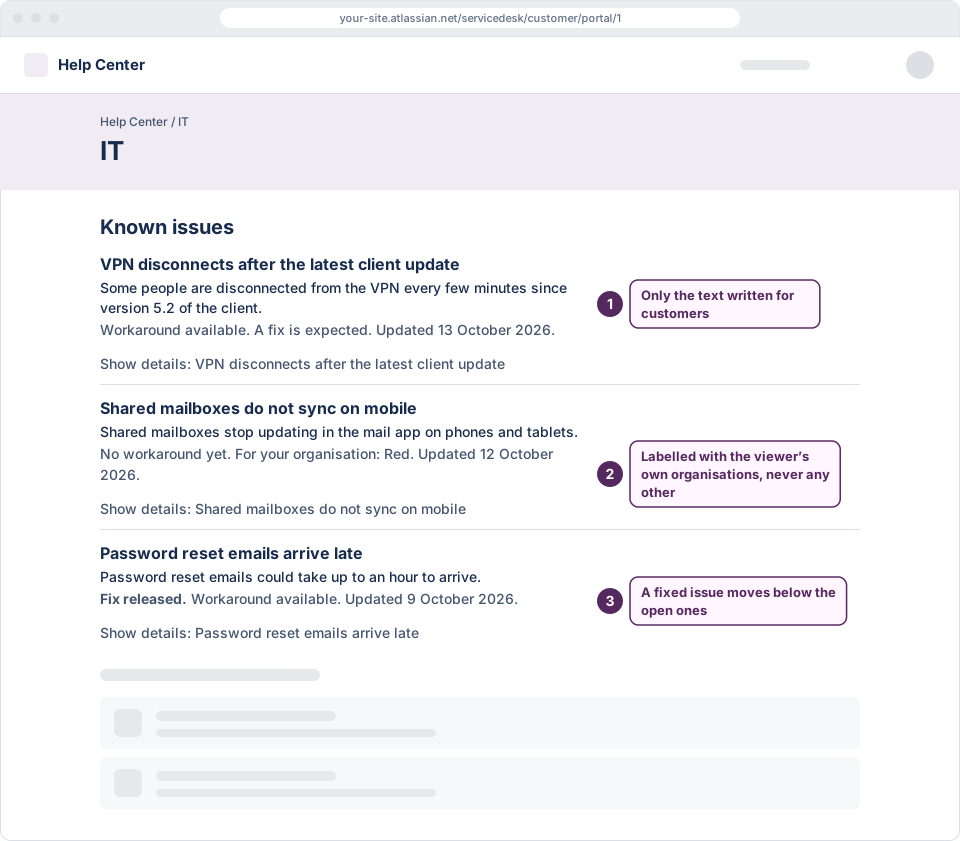
- The known issues list on the portal’s home page, headed “Known issues”. It lists the known issues the customer may see on this service project.
- The create screen, headed “Known issues for this request type”. When a customer picks a request type, it lists the known issues mapped to that request type (see Matching), before the customer raises a request. A request type that Jira restricts to some people can be mapped only by an agent who is among them.
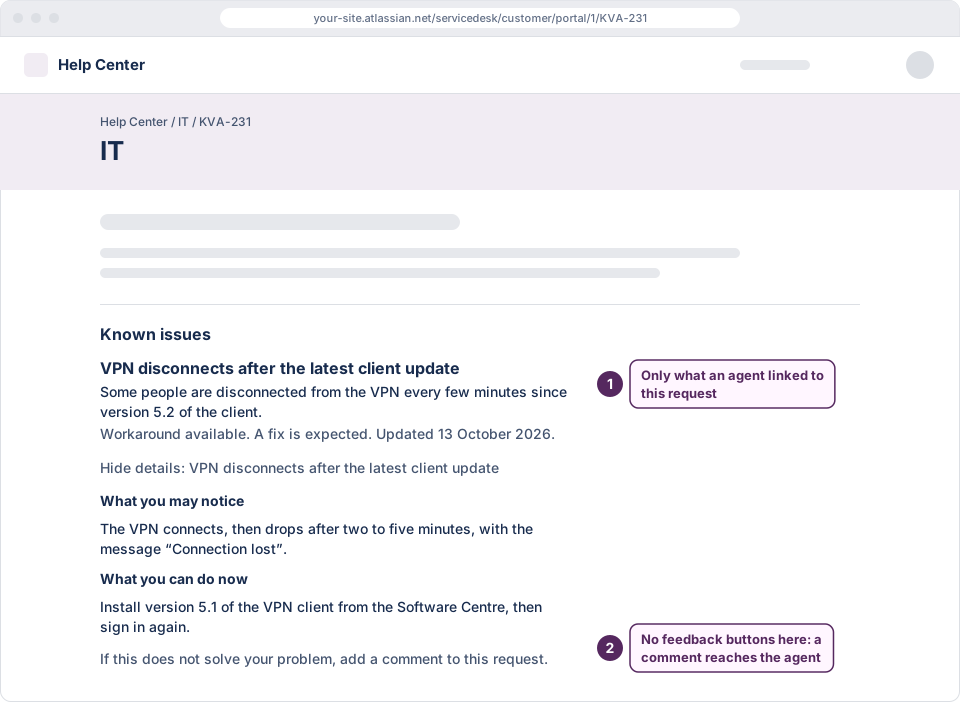
- The panel on each request, titled “Known issues”. It lists the known issues an agent linked to that request.
 (opens the full-size illustration)
When there is nothing to show, the list and the create screen show nothing at all. The request panel always shows its title, so when nothing is linked, or nothing linked is for this customer, it says “There are no known issues to show for this request.” The same sentence covers every case, so a customer cannot tell which it was.
What a known issue shows
Each known issue shows its title and summary, and a line about the workaround:
- “No workaround yet.”
- “Workaround available. A fix is expected.”
- “Long-term workaround. No fix is planned.”
Once its problem is fixed, it reads “Fix released.” first, the workaround line drops its second sentence (“Workaround available.” or “Long-term workaround.”, and no line at all when there was no workaround), and it moves below the known issues not yet fixed. A known issue published to the customer’s organisation names it, for example “For your organisation: Red.”, or “For your organisations: Red and Blue.” for someone in both. Each shows when it was last updated, for example “Updated 13 October 2026.”
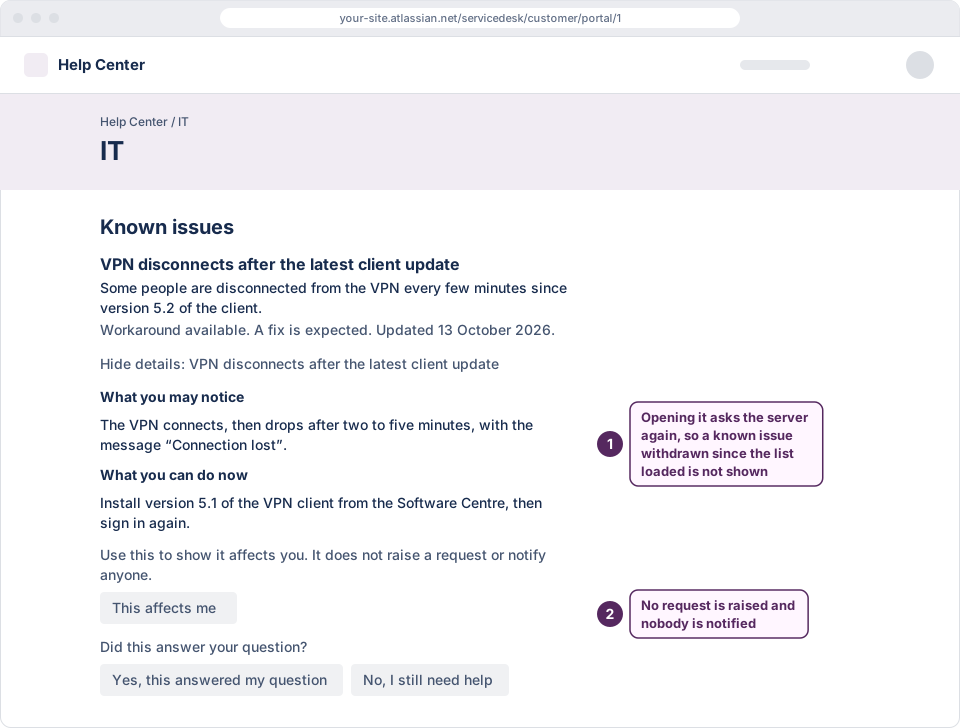
“Show details:”, followed by the known issue’s title, opens one known issue at a time, with up to three parts: “What you may notice”, “What you can do now” and “Message from the service team”. A fixed one also says “A fix has been released for this issue.” Opening it asks Kenvara again, so a known issue taken off the portal since the page loaded says that its details are not available, and to reload the page.
A surface shows five known issues, then “Show 3 more known issues”, up to 25 in all. Known issues not yet fixed come first, newest first.
Feedback
On the list and the create screen, an opened known issue offers customers three buttons:
- This affects me. “Use this to show it affects you. It does not raise a request or notify anyone.”
- Yes, this answered my question and No, I still need help, under “Did this answer your question?”
A press shows “Thank you. Your response was received.” After No, I still need help it also tells the customer how to go on: on the home page, to choose a request type to raise a request; on the create screen, to carry on with the form. Nothing is sent to anyone.
 (opens the full-size illustration)
Each response is stored on the site with a one-way code in place of who the customer is, for 30 days; after that only counts remain. The request panel has no feedback buttons; a known issue opened there says “If this does not solve your problem, add a comment to this request.”
 (opens the full-size illustration)
Agents see the counts on the record’s Portal results tab in the Known errors workbench: times shown, details opened, and presses of each button, for each portal surface. They count presses, not people. Times shown and details opened are counted as they happen; presses appear after Kenvara’s next daily check.
Who sees what
- Customers with a portal-only account see known issues published to all customers, and those published to an organisation they belong to.
- Customers who sign in with an Atlassian account see known issues published to all customers. In this version they see those published to their organisations only when Kenvara’s daily check of the site’s organisations is current and covers three or more organisations, and not if they belong to more than half of the site’s organisations (and at least three of them), or to an organisation created since the last check. Atlassian’s platform checks for these customers passed on 14 October 2026. See Organisations and MSPs.
- Agents who open the portal see known issues published to all customers. When there are some to show, a note says that known issues published to specific organisations are not shown to agents there, and that Preview as organisation on the Known errors workbench shows what an organisation’s members see.
- Visitors who are not signed in see nothing from Kenvara. Kenvara does not support anonymous access to a portal.
Everyone must be able to use the service project’s portal in Jira Service Management. Kenvara follows Jira Service Management’s own access: if the portal does not show its pages to someone, Kenvara shows them nothing either.
When someone is removed from an organisation, they stop seeing its known issues within 2 minutes at Kenvara’s default setting. Jira may take longer to report a removal. A page already open keeps what it showed until it is reloaded. When a removal must take effect at once, unpublish the known issue or change its audience first. See “How fast a removal takes effect” in Organisations and MSPs.
When the portal is very busy, or Jira’s rate limit for apps on the site is low, Jira can refuse some of Kenvara’s checks. Kenvara then shows less, never more: known issues published to specific organisations are hidden, and a page load may show nothing from Kenvara. They come back once the checks succeed again.
While the licence is not active
While Kenvara’s licence on the site is not active, the portal shows nothing from Kenvara: no list, no create screen panel, and the request panel’s ordinary “There are no known issues to show for this request.” Nothing on the portal names a plan, a price or the licence, and no feedback is recorded.
Where Kenvara does not appear
- On Customer Service Management support sites.
- On the help centre as a whole: known issues follow the service project, and appear on that project’s portal only.
Language and dates
Kenvara’s words on the portal are in English, and a known issue keeps the language it was written in. In this version dates on the portal are shown in the British form, such as “13 October 2026”, to every customer, whatever their language setting.